Perps in Morsel: the best price, with the risk in plain sight
Perpetual futures let you go long or short on a market with leverage. On Solana they live on several venues, each with its own fees, its own book and its own app. Morsel puts them behind one ticket: you pick the market and the side, and the wallet does the comparing.
Perps are in DeFi › Perps on Solana, with three venues today: Jupiter Perps, Pacifica and Phoenix.
A plain word first: leverage magnifies losses as much as gains. A leveraged position can lose its whole margin, and a position that reaches its liquidation price is closed. Only trade with money you can afford to lose.
Simple mode or Pro mode
Morsel has two ways to trade perps, and you can switch at any time.
- Simple picks the venue for you by best price and keeps that choice out of the way. Orders are market orders, leverage goes up to 10x, and take profit and stop loss are there when you want them.
- Pro shows everything: the venue comparison and the option to override it, limit orders, and each market's full leverage.
If you have never traded perps from this phone, you start in Simple. If you have, you start in Pro. The switch is in the ticket's ⋯ menu and in Settings › App › Simple perps mode.
The best price, counted honestly
"Best price" in Morsel is not the lowest headline fee. For your exact order, Morsel works out the all-in cost on every venue that lists the market and will take the order:
- the venue's fee to open, and the cost to close again,
- the price impact or spread the book or pool charges for your size,
- the network fee,
- and a day of funding or borrow at the current rate.
The venue with the lowest total wins. A venue only counts if it lists the market, takes orders from your region, fits your leverage and has quoted the order without a warning that would stop it. Where Morsel earns a builder fee on an order, it is shown as its own line, and a venue that earns Morsel a fee is never picked when it costs you more.
How to open a position
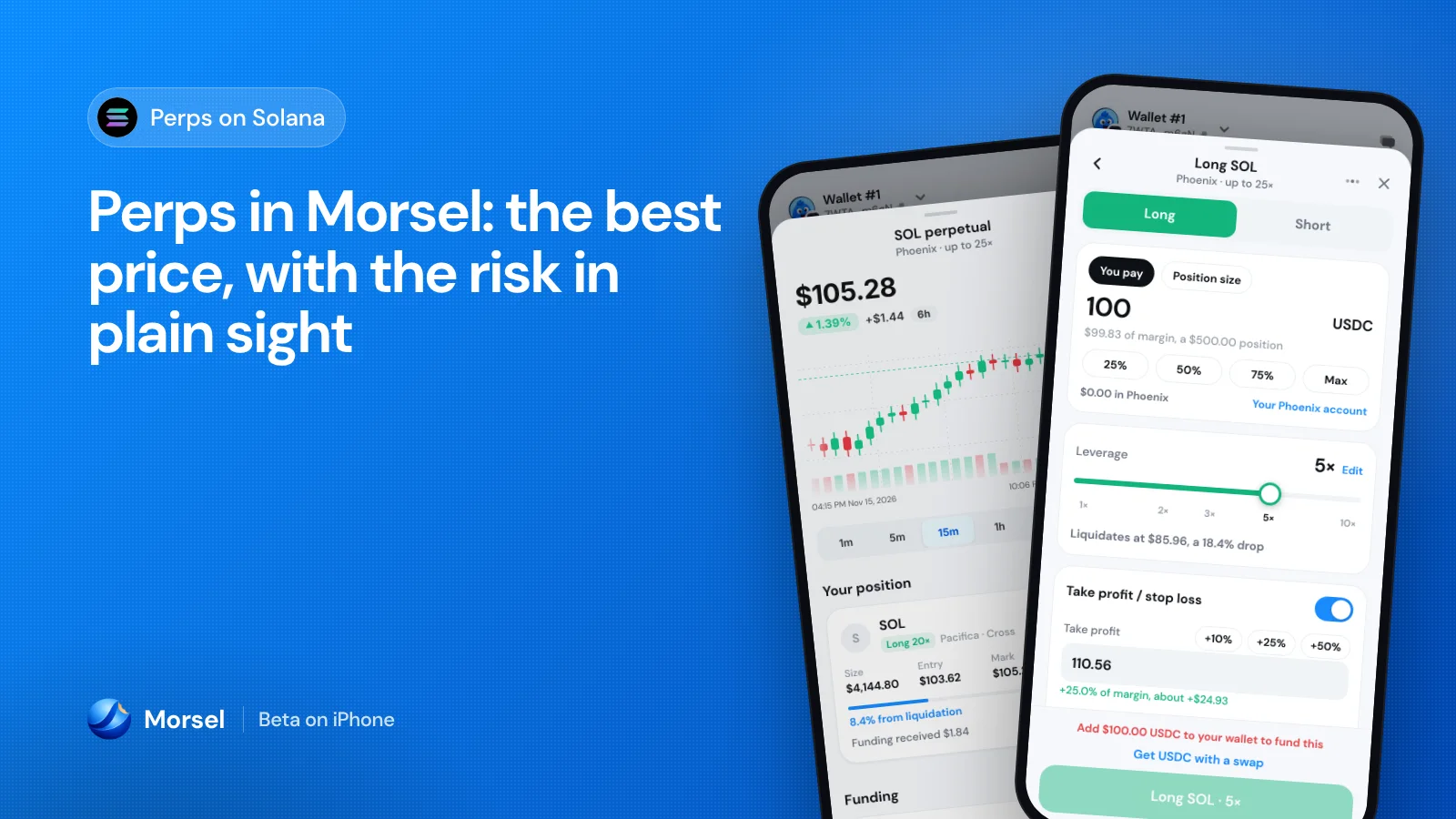
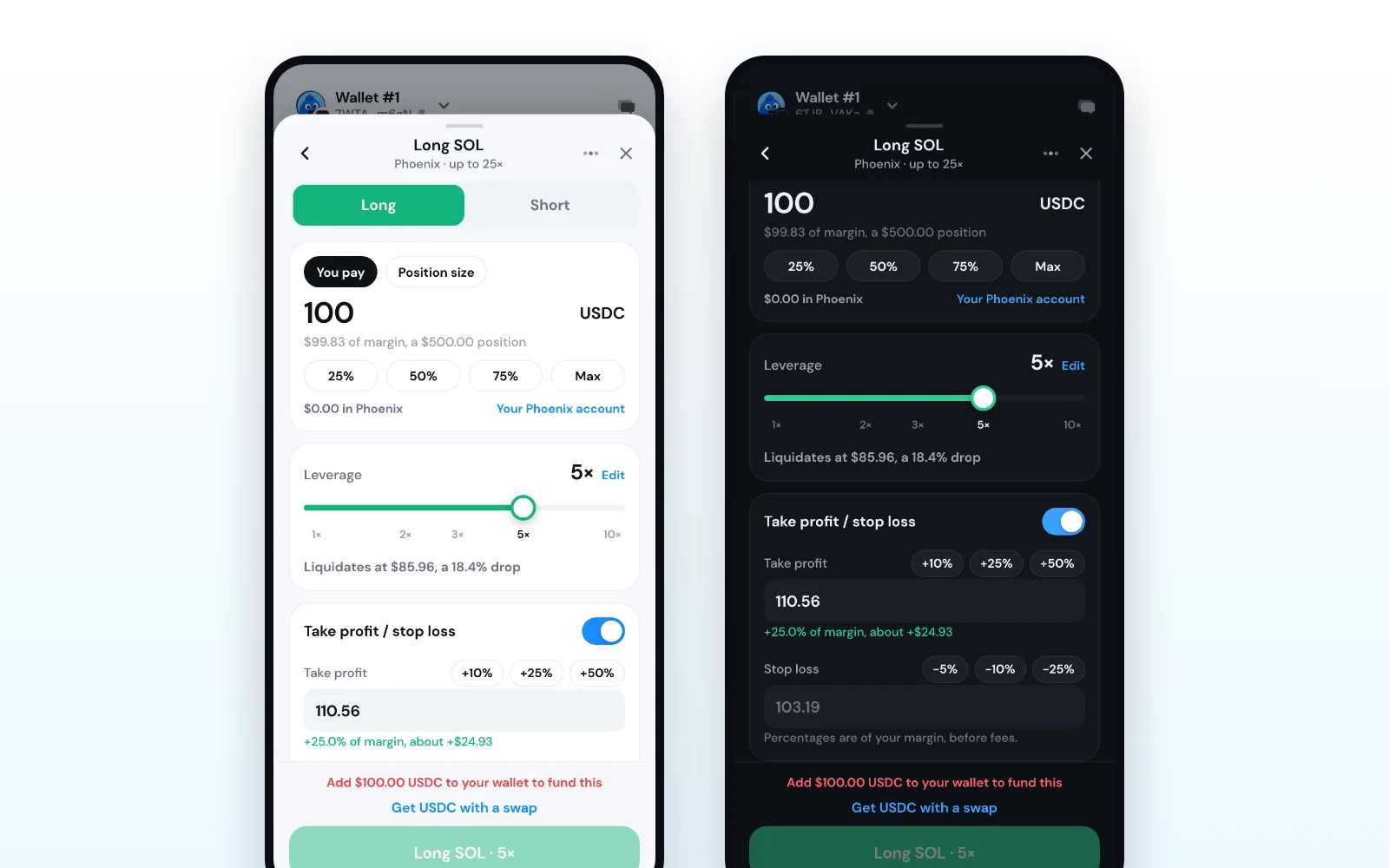
- 1. Open DeFi, tap Perps, and pick a market, for example SOL.
- 2. Tap Long or Short.
- 3. Enter what you pay, or the position size, in dollars or in the coin. The 25%, 50%, 75% and Max chips fill it for you, keeping enough SOL for the network.
- 4. Set the leverage with the slider or type it.
- 5. Optional: switch on Take profit / stop loss and tap a preset.
- 6. Check the summary, then hold the button. It says exactly what will happen, for example "Long SOL · 5×".
On Pacifica and Phoenix your margin sits in your account on that venue, in USDC. If that account is short, Morsel adds the difference from your wallet's USDC in the same flow, and tells you how much before you confirm.
Liquidation, as a distance you can read
A liquidation price on its own is hard to feel. Morsel says it as a distance: "Liquidates at $98.10, a 6.2% drop". The line stays neutral when liquidation is far, turns blue as it gets closer and red when it is close. While you move the slider it shows an estimate, then the venue's own figure as soon as the new quote arrives.
Leverage has guard rails too. Past 20x the slider turns red, and past 50x (in Pro, on markets that allow it) the order needs a hold to confirm.
Take profit and stop loss in one tap
Exits can be set by price or as a share of your margin. The presets are +10%, +25% and +50% for a take profit and −5%, −10% and −25% for a stop loss, and each one shows what it is worth in dollars. Morsel checks every trigger before it goes: a take profit on the wrong side of the price, or a stop loss past your liquidation price, is refused with a clear reason. You can set, change or remove them later on the open position too.
Your positions, Close all and Flip
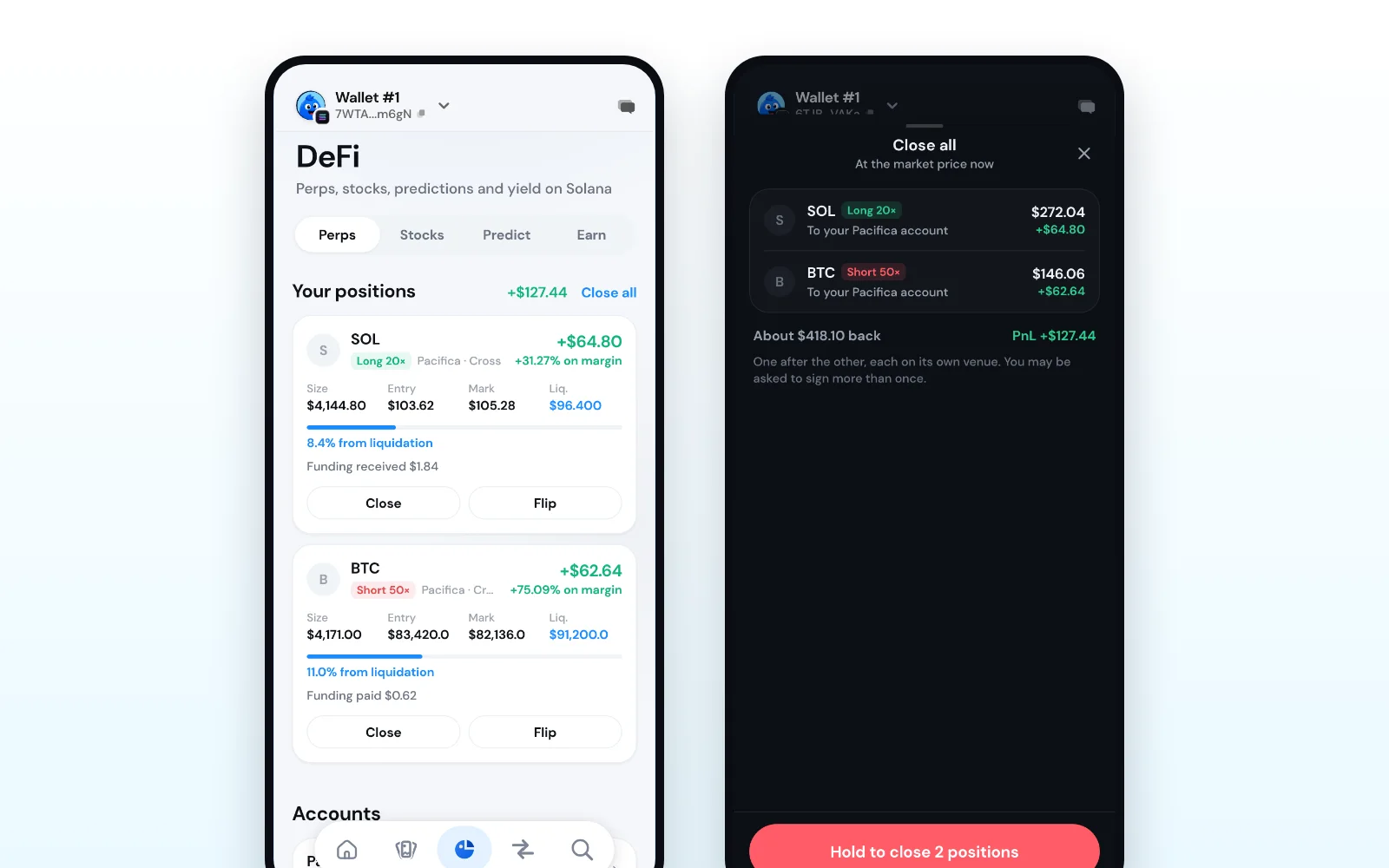
Every open position shows its PnL in dollars and as a return on margin, its entry, mark and liquidation prices, how far it is from liquidation, and the funding it has paid or received. Each card has two buttons:
- Close closes the whole position at market after a hold. From the position itself you can also close part of it (25%, 50% or 75%) where the venue allows it, and see where the money goes: back to your wallet, or to your venue account.
- Flip closes the position and opens the other side with what comes back. You see both orders before you hold. The new side opens only once the close has filled; if it cannot open, you keep the money from the close.
Once you hold two or more positions, Close all appears. It lists every position, what each is worth now and where its money goes, with the total, and closes them one after the other on their own venues. You may be asked to sign more than once.
A market screen built for perps
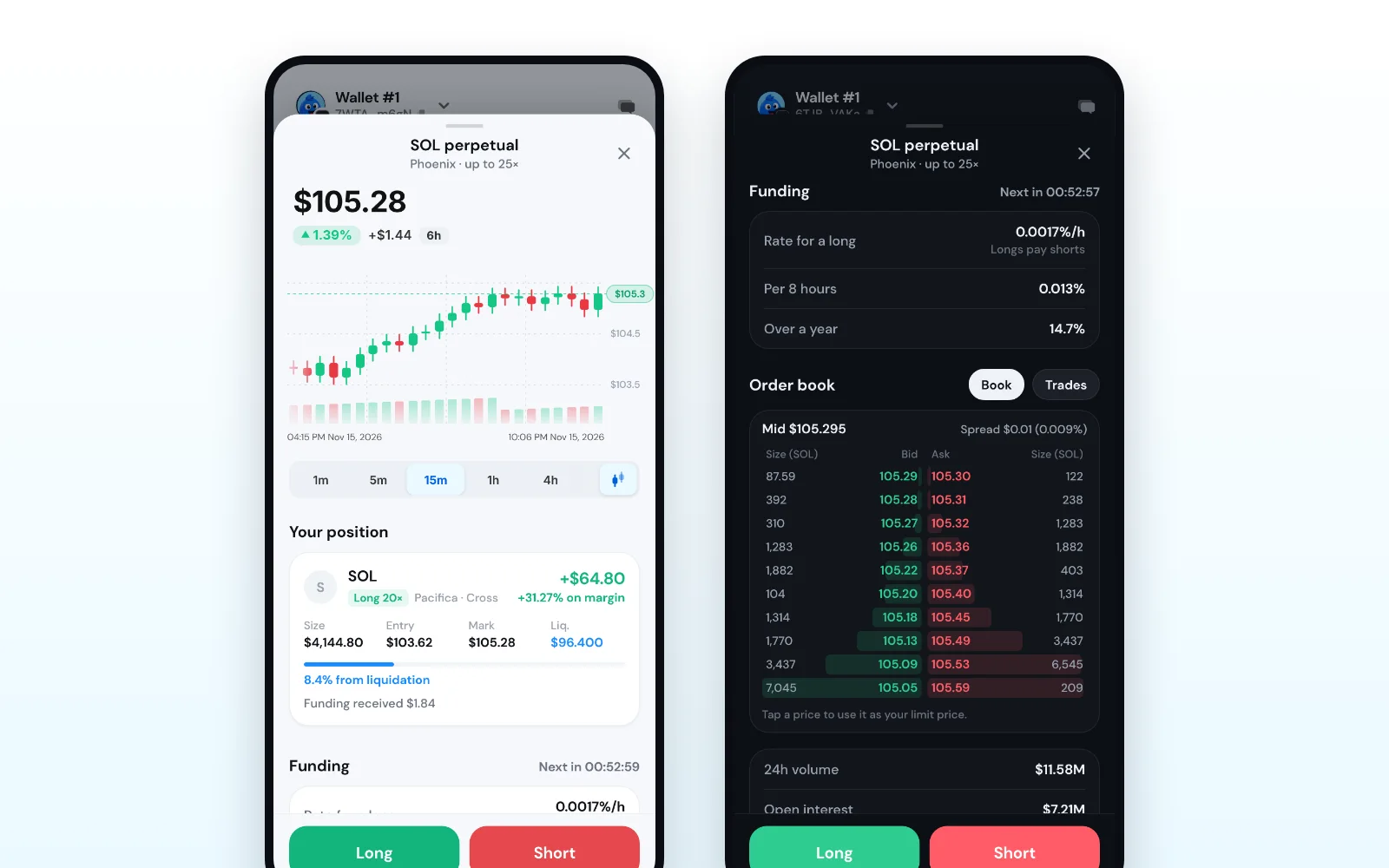
Tap any market to open its screen. Everything on it comes from the venue you trade on:
- Candles from the venue's own mark price, from 1 minute to 4 hours, with your entry, liquidation, take profit and stop loss drawn across the chart.
- Funding per hour, per 8 hours and over a year, who pays whom, and a countdown to the next payment. On Jupiter, which charges a borrow fee instead, you see that fee and no countdown.
- The order book with ten levels a side and the spread, plus a tab of recent trades. In Pro mode, tap a price in the book and it goes to the ticket as your limit price.
- Jupiter's pool in place of a book, showing how much it can take on each side.
The live feeds stop when you close the screen or leave the app, so a market you are not looking at costs you nothing.
Good to know
- Perps are on Solana only. Other networks in Morsel have no perps.
- Some venues are not available in every country. A venue that will not take orders from your region is left out of the choice.
- Stock and commodity markets on Phoenix follow their exchanges' hours.
Perps are in the Morsel beta on iPhone through TestFlight. Start in Simple mode, keep the leverage low, and remember: you can lose your whole margin.